Read this before you lock in.
LectureLock enforces strict discipline and hides system UI on purpose. A few minutes here means zero surprises during your first session.
Platform compatibility
LectureLock is highly optimized for specific platforms to ensure maximum distraction-free studying.
Progressive Web Apps (recommended)
It works perfectly if you use a web app such as the PhysicsWallah Video Player. Installing your lecture platform as a standalone app is the best way to use LectureLock.
Standard Chrome tabs
You can now watch lectures in ordinary Chrome tabs. Our companion extension actively blocks non-allowed websites during your session, keeping you perfectly locked in.
YouTube lectures
LectureLock is incredible for PW lectures, but YouTube lectures are not fully tested yet — it may not be perfect. This will improve in future updates.Preparing for a session
System UI is hidden
When a session starts, your Windows taskbar and utility panel (WiFi, Night Shift, Bluetooth, brightness) are completely hidden to prevent wandering.- Prepare in advance: connect WiFi, pair Bluetooth headphones and set Night Shift before you click Start.
- During the session: to change volume or brightness, use the physical shortcut keys on your keyboard.
App restrictions & persistence
LectureLock enforces discipline by constantly monitoring your windows.
- Auto-reopen: if you close the main app while a session is active, it aggressively re-opens itself and snaps you back to focus.
- Lock to Lecture: if enabled, you cannot leave the lecture window — open another app and it minimizes instantly.
Crucial step
Make sure to untick the “Allow exiting/closing the app” checkbox underneath this setting, so you absolutely cannot leave or close the lecture page.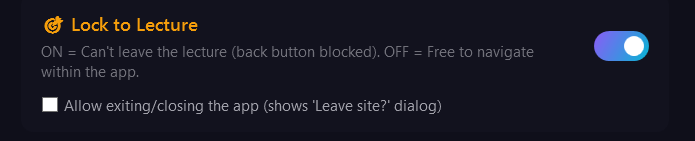
Pro tip for Strict Mode
If your lecture ends but the timer hasn't, you are still locked in. Carefully resize the current window to reveal your desktop, then open your PW app again to start the next class. Once the timer ends, close the old window.Strict Mode (no quitting)
Strict Mode is for students who tend to quit early. With it on, it is not possible to simply exit the session. The only way to stop the timer early is to type out a random paragraph of characters exactly matching the length you configured.
This penalty ensures quitting early is more tedious than just finishing the lecture.
Recommendation
Set the required length to 1000–1500 characters or more. The sheer effort of typing that much random text destroys your inner will to quit — so you just keep studying.Ending a session & shortcuts
If you are not in Strict Mode, or you hit a genuine emergency, you can use the global shortcut to exit the lock.
Emergency stop: hold Ctrl + Shift + Q for 3 seconds.
Whitelist configuration
LectureLock blocks everything by default, but you need certain tools to study (calculators, PDF readers). To allow an app, open the Whitelist Editor before starting your session, click Detect Window and point it at the app. It is detected automatically and will not be minimized during your session.
Website blocker & anti-pause extension
For perfect discipline in standard Chrome tabs, we built a companion extension. It actively blocks distracting websites during your session and prevents the PhysicsWallah player from auto-pausing when you click away to read notes. It runs silently and communicates securely with the desktop app.